How to onboard Bulk FHIR ingestions
This document outlines the steps required to set up a new Bulk FHIR integration. The specific EHR we will go over is eClinicalWorks (eCW), but the logic applies to all EHR providers.
Prerequisites
Before beginning the integration process, ensure that: - You have access to the necessary EHR systems (1Password)
Integration Steps
1. EHR-Side Application Setup
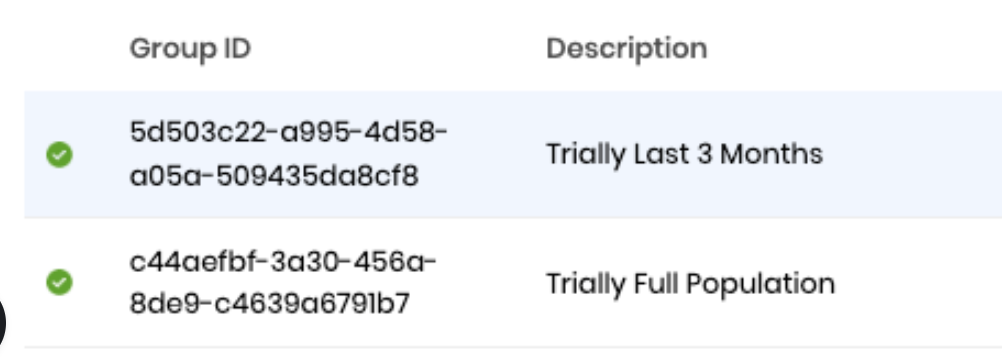
To create our integration, we will need the URL to fetch data from, as well as group ID. This information can be found in the eCW Production Configuration Information.
- FHIR URL from the specific site we want to integrate:
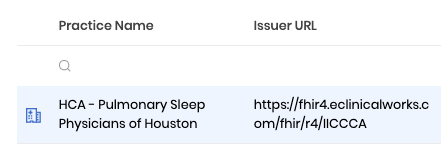
- Ensure that the application setup has been completed on the eCW side. Your application must be activated (flagged green).
2. Obtain Required Credentials
Since authentication for eCW is already active, there is nothing to be done in this regard. Our configuration file points by default to a secret with eCW's credentials.
3. Configure Site Map Attributes
IMPORTANT: Site map attributes can be used to assign values that will become attributes in the config class when instantiated for that given site.
Create a configuration for the new site in our site map attributes:
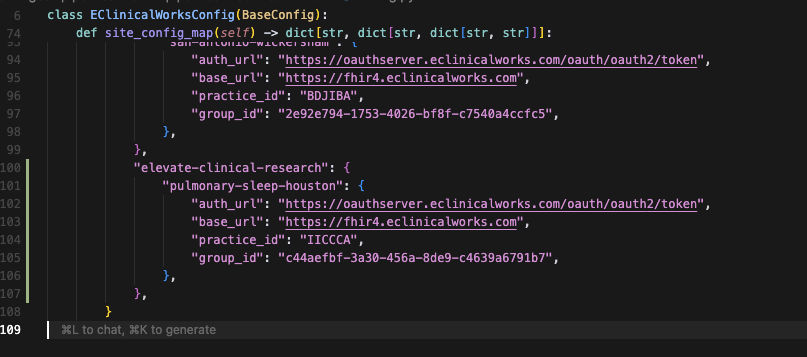
Ensure all required parameters are properly configured according to the obtained credentials.
4. Triggering the pipeline for the first time through client.py
This step isn't done in production but is crucial for us to be able to test things out while maintaining some convenience features such as the checkpointing.
When running the adhoc client, make sure to point it to the correct configuration:
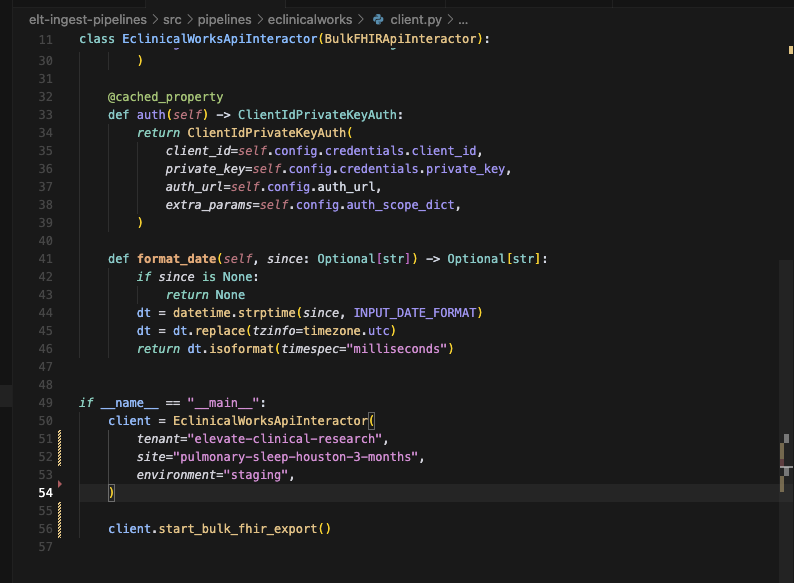
Run the eCW client with the following steps:
-
Modify the script to accomodate parameters like
_sinceinto the interactor class - this depends on the vendor's capability. -
Ensure your Python path contains the SRC directory:
-
Run the client script:
Check the logs to confirm that the bulk export process completed successfully:
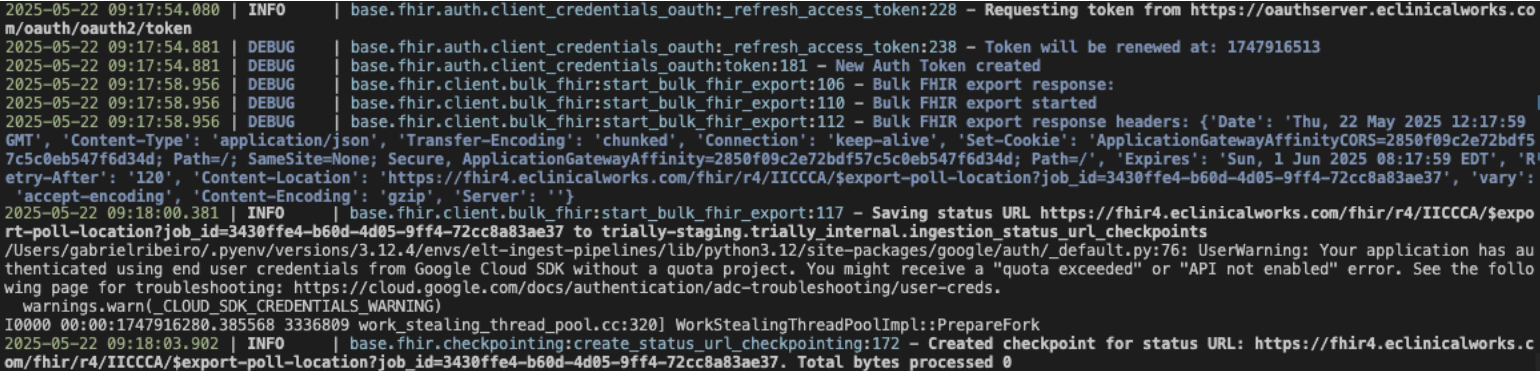
Verify Checkpoint Creation
Confirm that the correct records were created in the checkpointing tables:
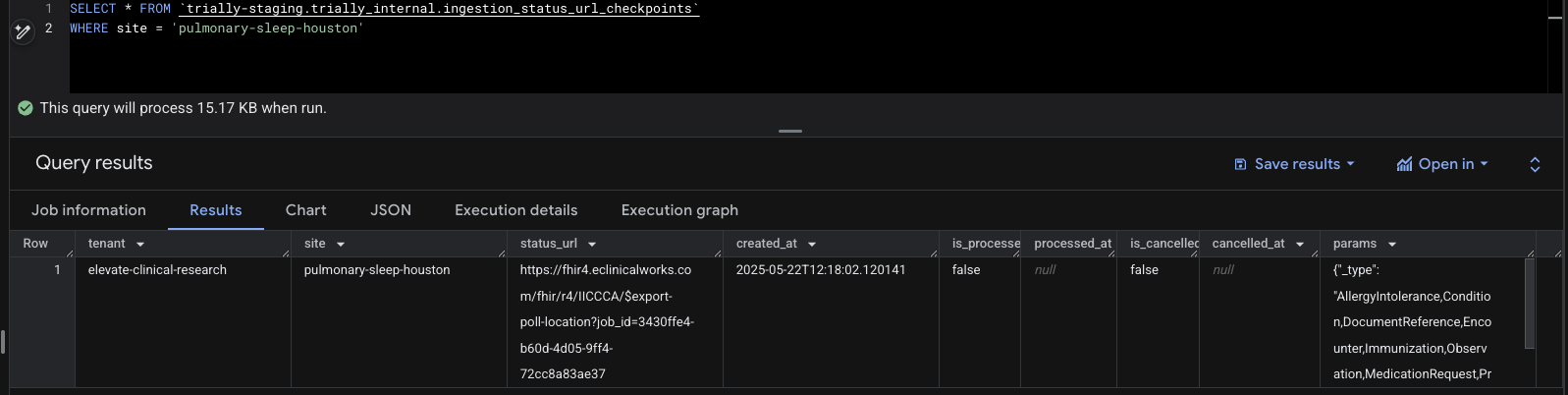
IMPORTANT: in our current checkpointing strategy, the code does not trigger a new export if a record for an active export is found in the status checkpointing table.
5. Next steps
After the export succeeds, we should be able to call for its status. That can be done through the aforementioned strategy mentioned by modifying the adhoc script to:
if __name__ == "__main__":
    client = EclinicalWorksApiInteractor(
        tenant="trially-dogfood",
        site="demo-site",
        environment="staging",
    )

    client.get_fhir_export_job_status()
Troubleshooting and general advice
- eCW exports take sometimes weeks to process and run overnight
- Sometimes, cancelling an export does not really work, and the export goes on even though we receive a
201 Acceptedresponse from their API.